

Test every path before sharing
Test the experience learners will follow, including responses you wouldn’t choose yourself. A working preview helps you find problems; it doesn’t publish your scenario or create a public share link.
This guide uses First day as a team leader as the reference. Inspect an approved original without editing it, and make any corrections on your separate working copy.
1. Open a preview
Section titled “1. Open a preview”From Steps, use Preview from here on the opening step. Check that the opening appears, then select Start. The preview toolbar includes Screen size, Edit Step, Go to Step, Variables and Close.
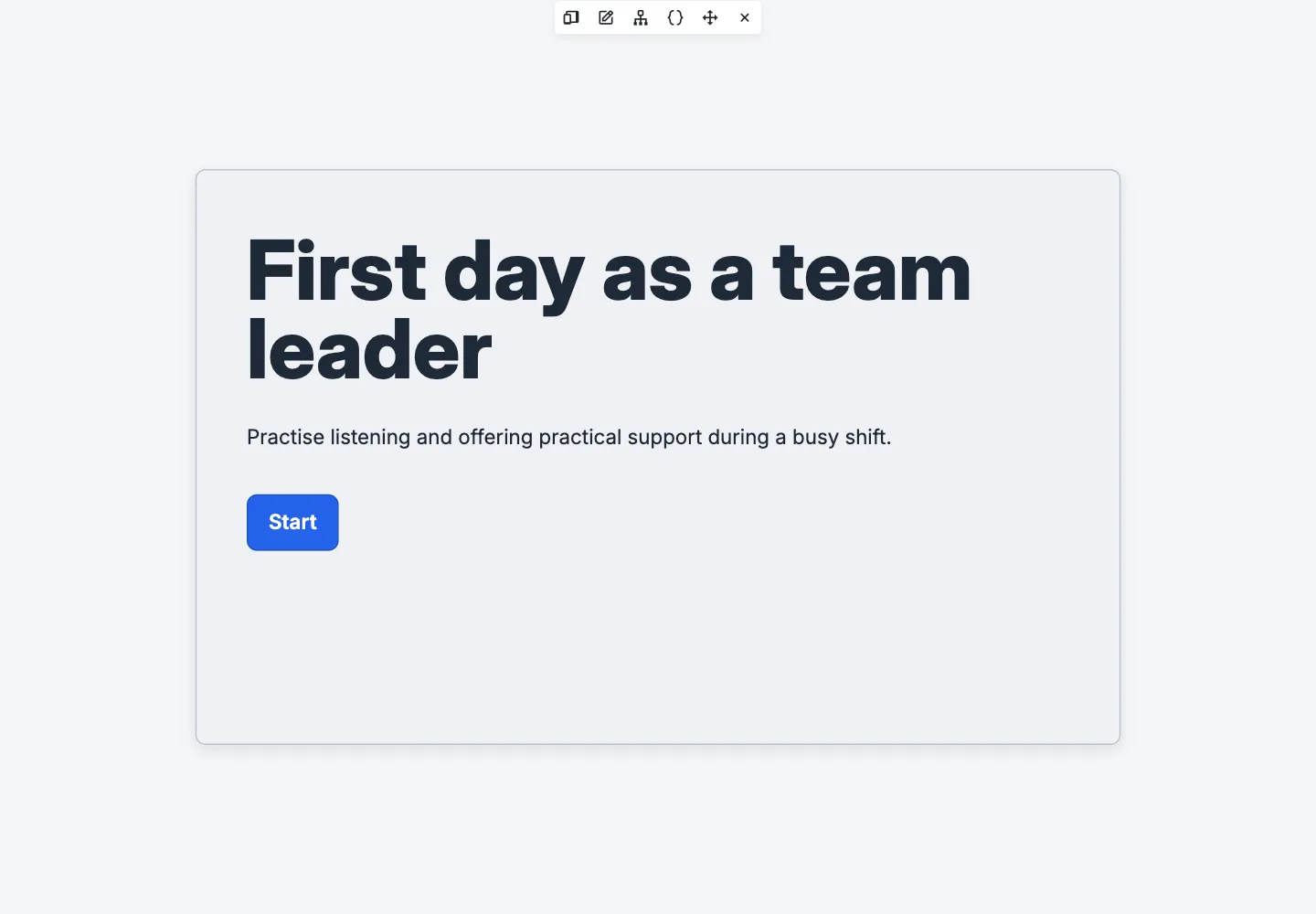
To inspect a selected step directly, open its preview and check which step appears. If it returns to the starting step, choose the intended step through Go to Step. A direct step check is useful, but doesn’t replace following the route that leads there.
2. Follow a complete route
Section titled “2. Follow a complete route”Read each scene and use its actual controls. At How will you respond?, try Listen and offer practical help.
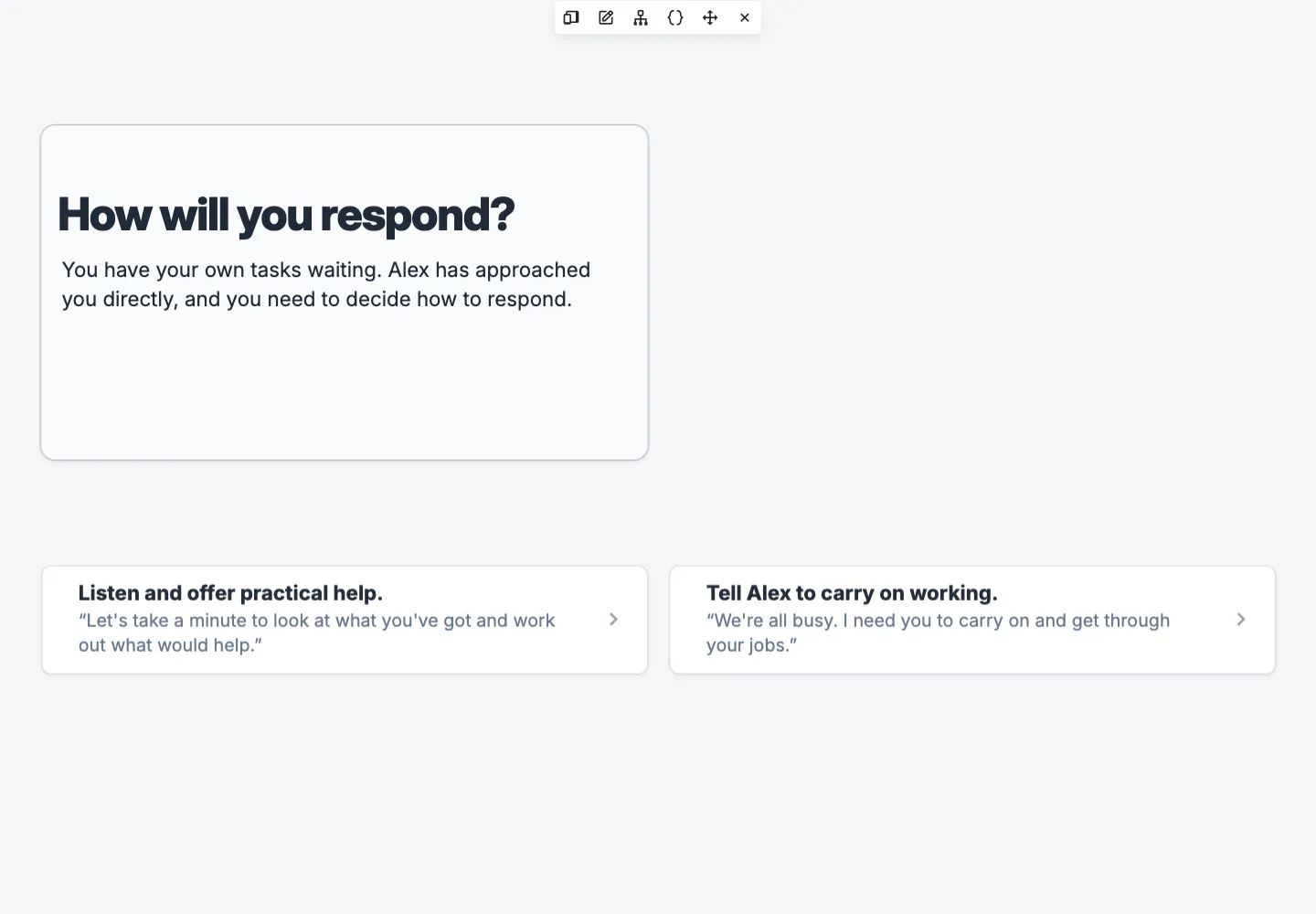
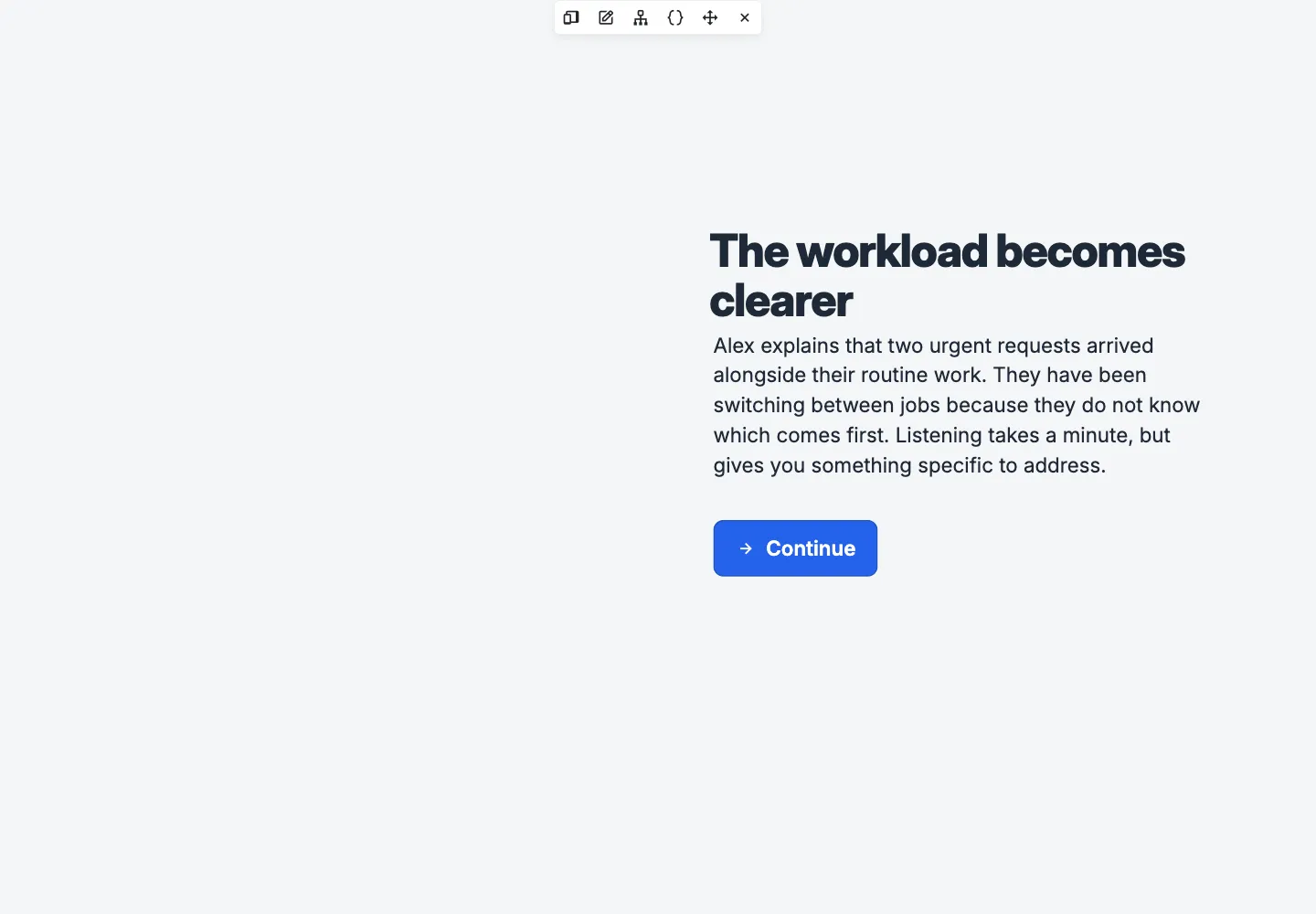
Check that the next scene is The workload becomes clearer and that Alex’s situation follows naturally from the response you selected.
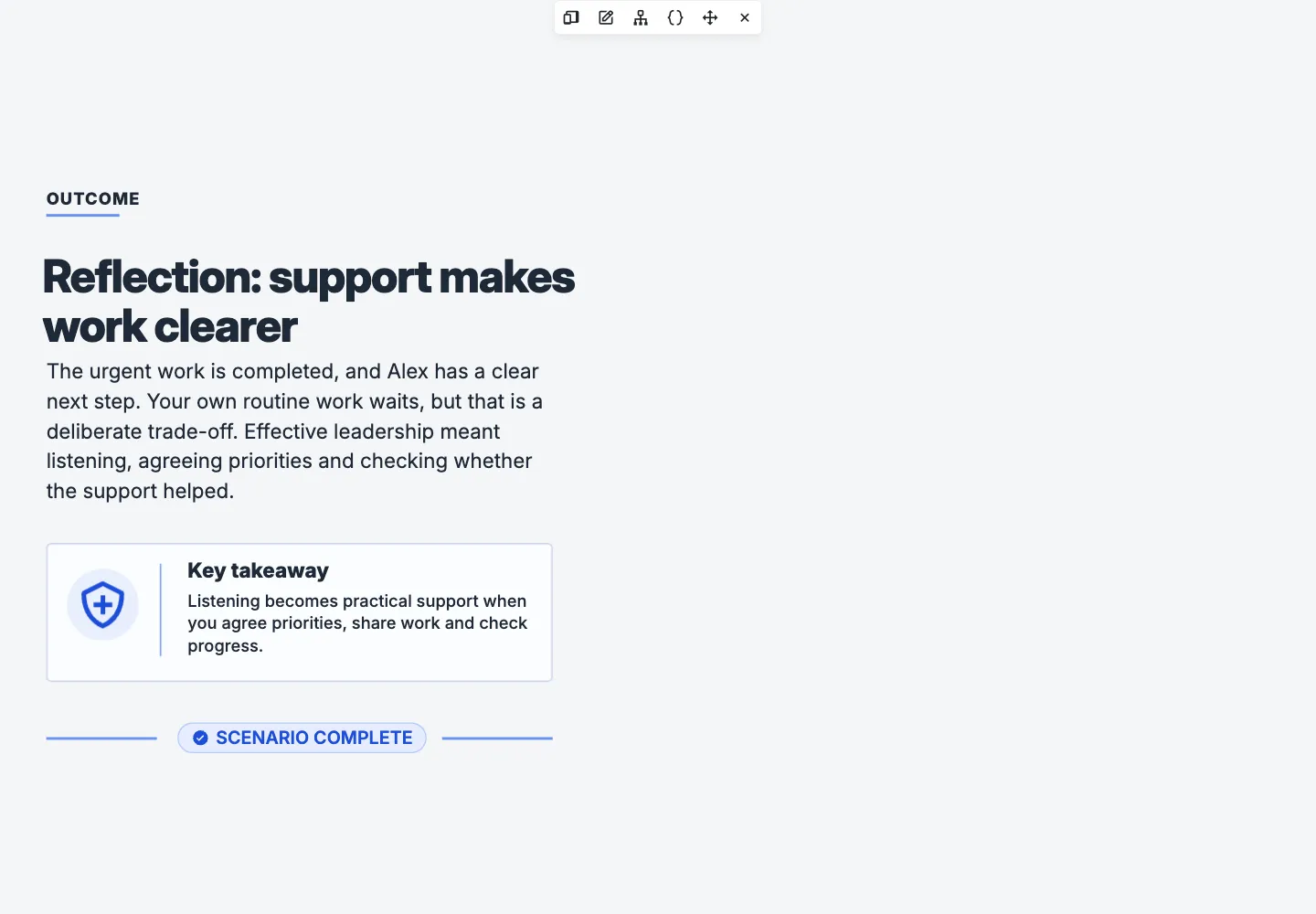
Continue through the next decision and ending. Check the outcome, reflection and takeaway as well as the immediate destination.
3. Check every meaningful route
Section titled “3. Check every meaningful route”Close the preview and open a fresh one from the beginning for each route. For the leadership example, check these four combinations:
| First response | Later response | Expected reflection |
|---|---|---|
| Listen and offer practical help | Agree priorities and share the work | Support makes work clearer |
| Listen and offer practical help | Offer encouragement without a plan | Follow through |
| Tell Alex to carry on working | Reopen the conversation with Alex | Follow through |
| Tell Alex to carry on working | Repeat the instruction to carry on | Concerns are useful signals |
Two routes share an ending, but arrive through different decisions. Follow both. Note the response, actual destination and anything unexpected so you can find the relevant connection later.
For your own scenario, make a similar checklist. Check every available response, not just that every step can be opened through Go to Step.
4. Test interactions and learner state
Section titled “4. Test interactions and learner state”Try each interactive control in context. If you followed Make components respond to learners, check Show guidance, Hide guidance, and the guidance’s initially hidden state in a fresh preview.
Where your scenario uses score or variables, open Variables to inspect the relevant values. The panel separates Variables from User Data. You don’t need to add either to this leadership example simply to test its branches.
Reopening a preview starts a fresh preview session. Returning to another step within the same preview can retain session state, so use a fresh run when checking the starting conditions.
5. Check other screen sizes
Section titled “5. Check other screen sizes”Open Screen size and choose a preset such as Mobile Portrait, then return to Responsive when finished.
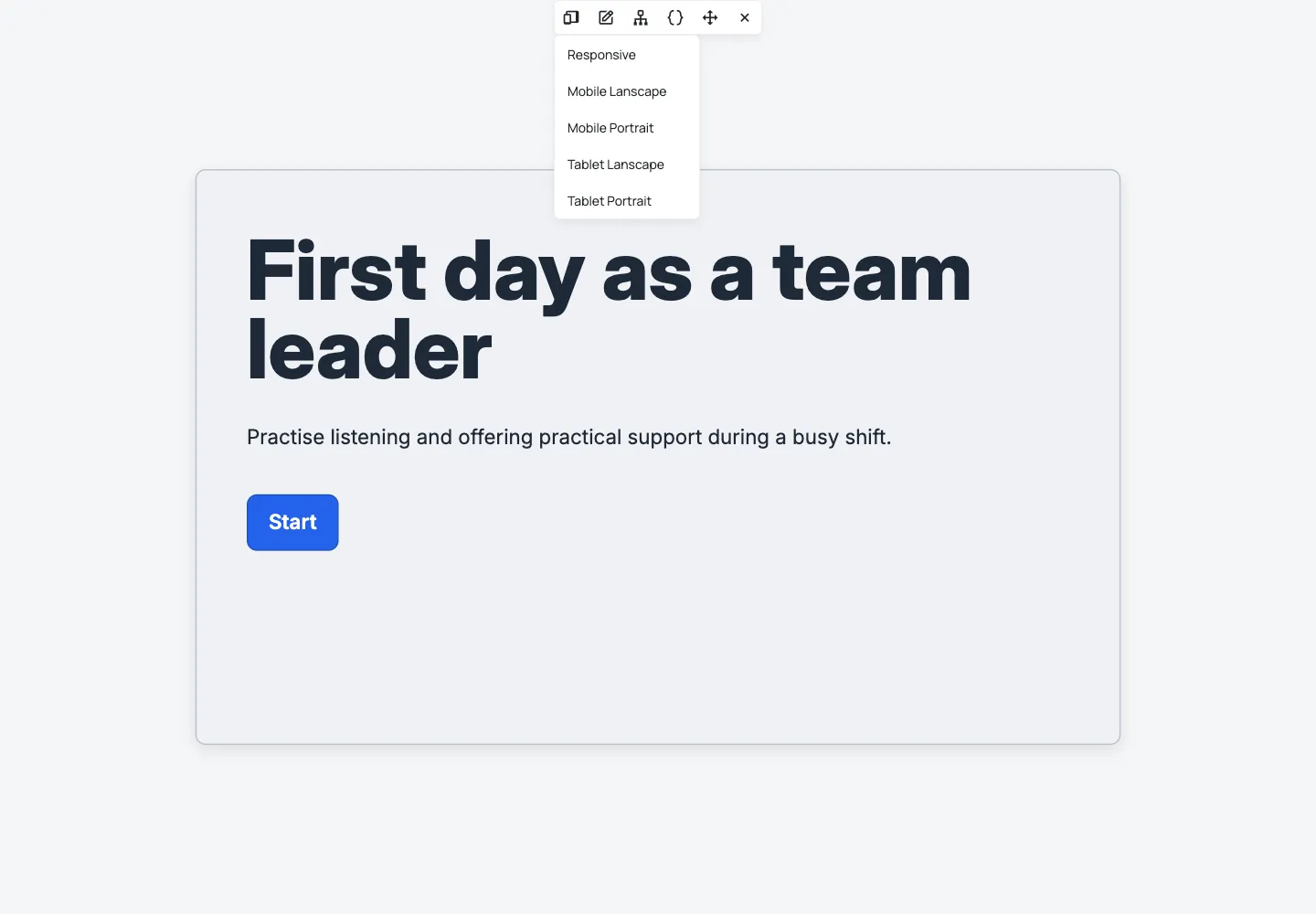
Check text size, spacing, controls and anything that appears after an interaction. The leadership example uses a wide canvas that scales down in Mobile Portrait; selecting a smaller preview doesn’t rearrange its content for you.
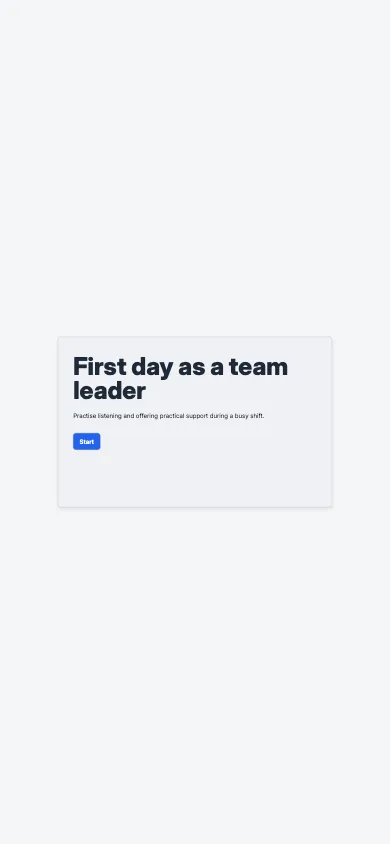
If text becomes too small or controls overlap, make an authoring correction on your working copy and test again. Screen presets are useful checks, not a guarantee of identical behaviour on every device.
6. Correct, save and repeat
Section titled “6. Correct, save and repeat”Use Edit Step in the preview toolbar, or close the preview and open Edit this step from Steps. Correct the relevant text, layout, interaction or choice destination.
Select Save, reload to check persistence, then open a new preview. Repeat the affected route and any other routes that share the changed step. For an interaction, test both its result and its initial state again.
Once the checks pass, keep your route checklist with your review notes. Previewing, approving generated content and publishing are separate tasks; a successful preview has not made the scenario publicly available.
After adding uploaded media or AI media, check each affected target. Inspect image placement, cropping and text contrast, and try audio after a learner gesture as well as from a fresh run. A saved library file is not proof that it has been added to the intended component. When these checks pass, publish, share, embed or export.