

Customise and reuse a theme
A theme gives your scenario a shared visual style. Make a small change to its colours and typography, then save those settings to use again.
This guide uses the separate First day as a team leader — Documentation practice scenario. The layout practice step gives you text and a button to inspect while making changes.
1. Open Theme
Section titled “1. Open Theme”Select Theme in the scenario navigation. The Theme Editor has categories such as Overview, Colours and Typography, alongside a preview area.
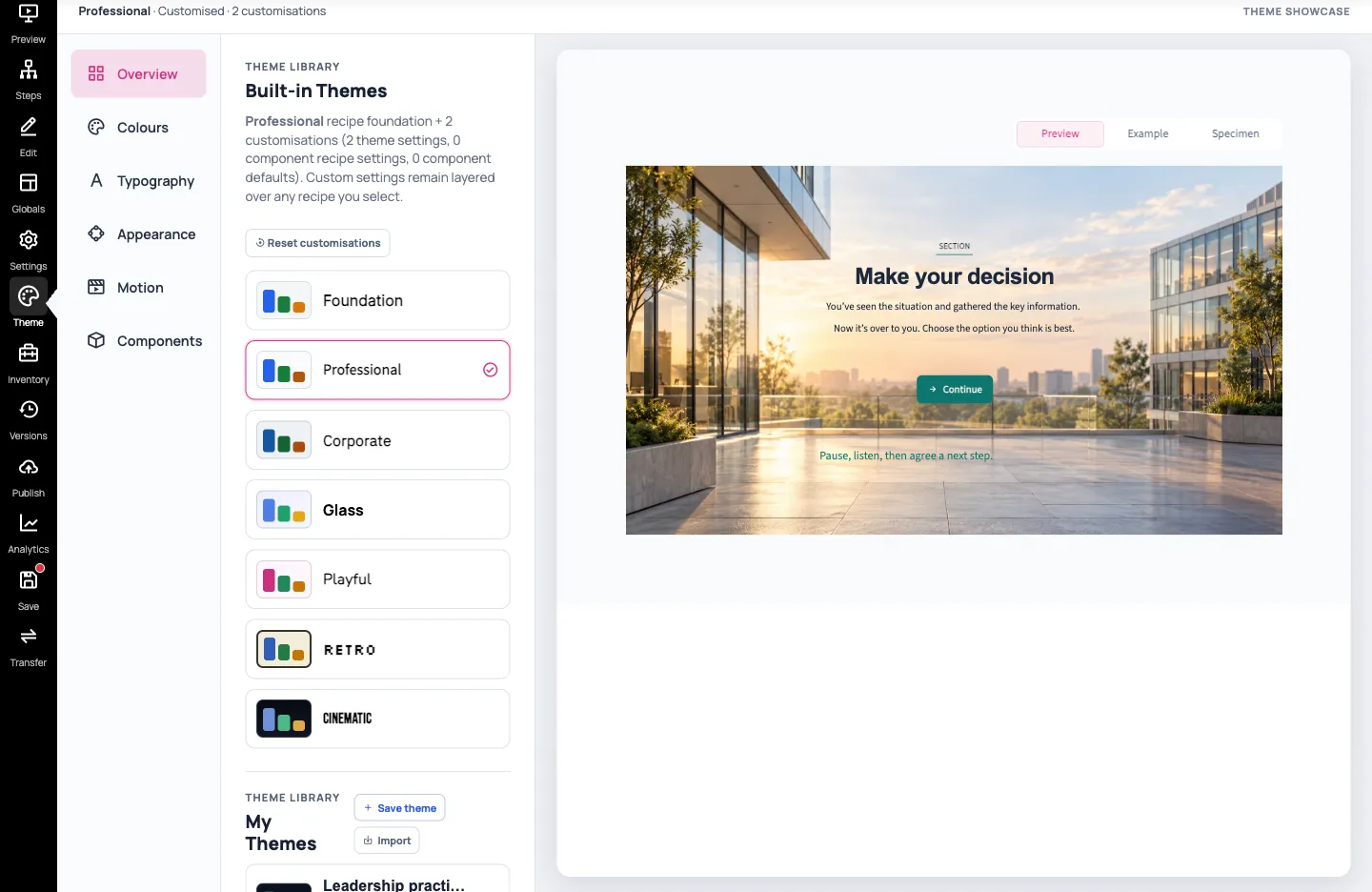
Theme settings provide defaults for the scenario’s Design System components. A component’s own settings can override them: for example, our practice note keeps the local 18px size set in Edit component content and appearance.
2. Choose a recipe
Section titled “2. Choose a recipe”Under Overview → Built-in Themes, select Professional. A recipe supplies a coordinated starting style; it isn’t a layout and doesn’t insert steps or components.
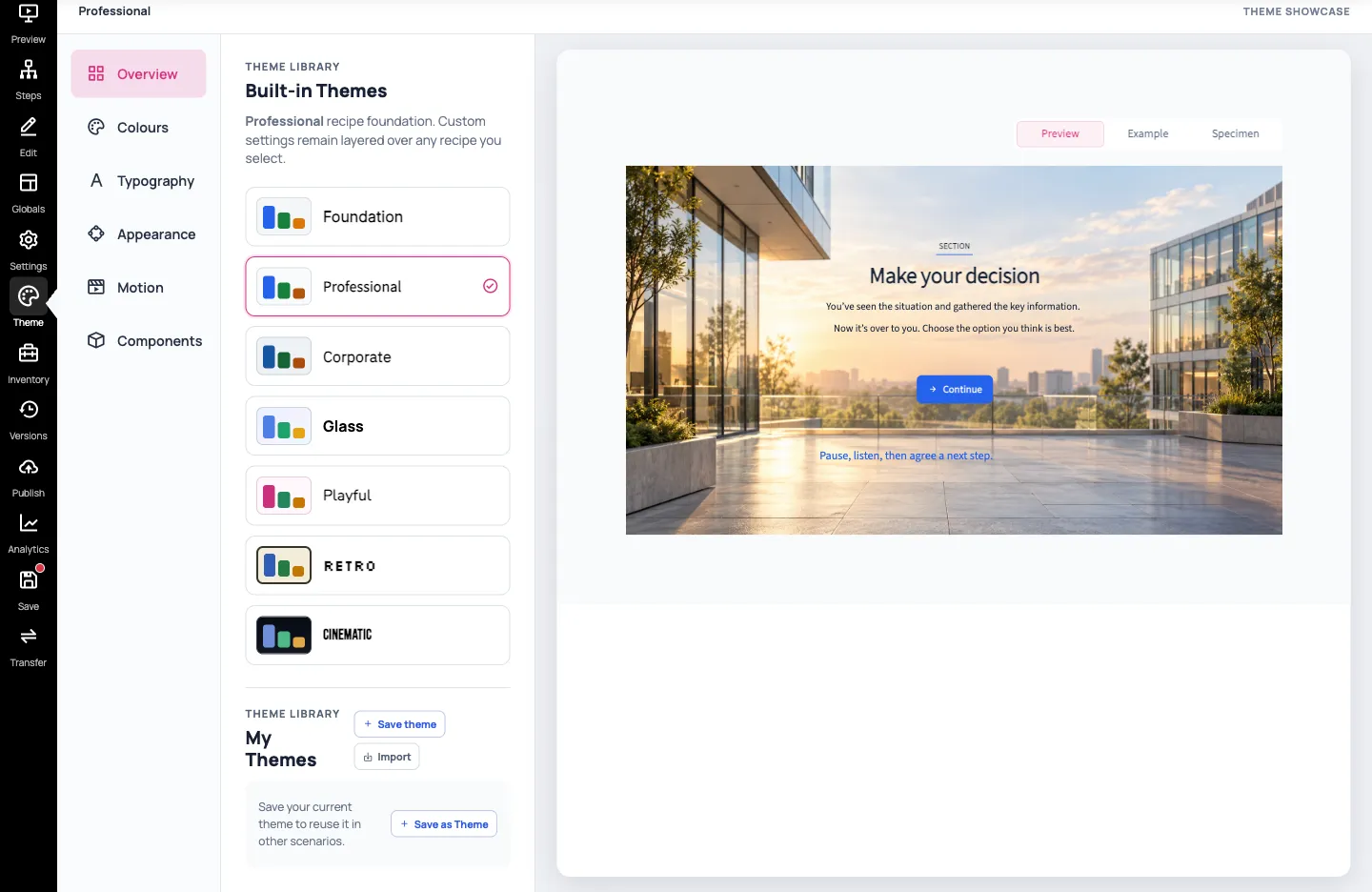
Existing customisations stay layered over the recipe you select. Reset customisations is optional: use it only when you deliberately want to remove those theme customisations and restore the selected recipe’s defaults. Read the confirmation before continuing. You do not need to reset your theme to save it in My Themes.
3. Change one colour
Section titled “3. Change one colour”Select Colours, find Accent, then replace its colour value with #0f766e for a deep teal. Click outside the field to apply it. You can also open the colour swatch to choose a colour visually.
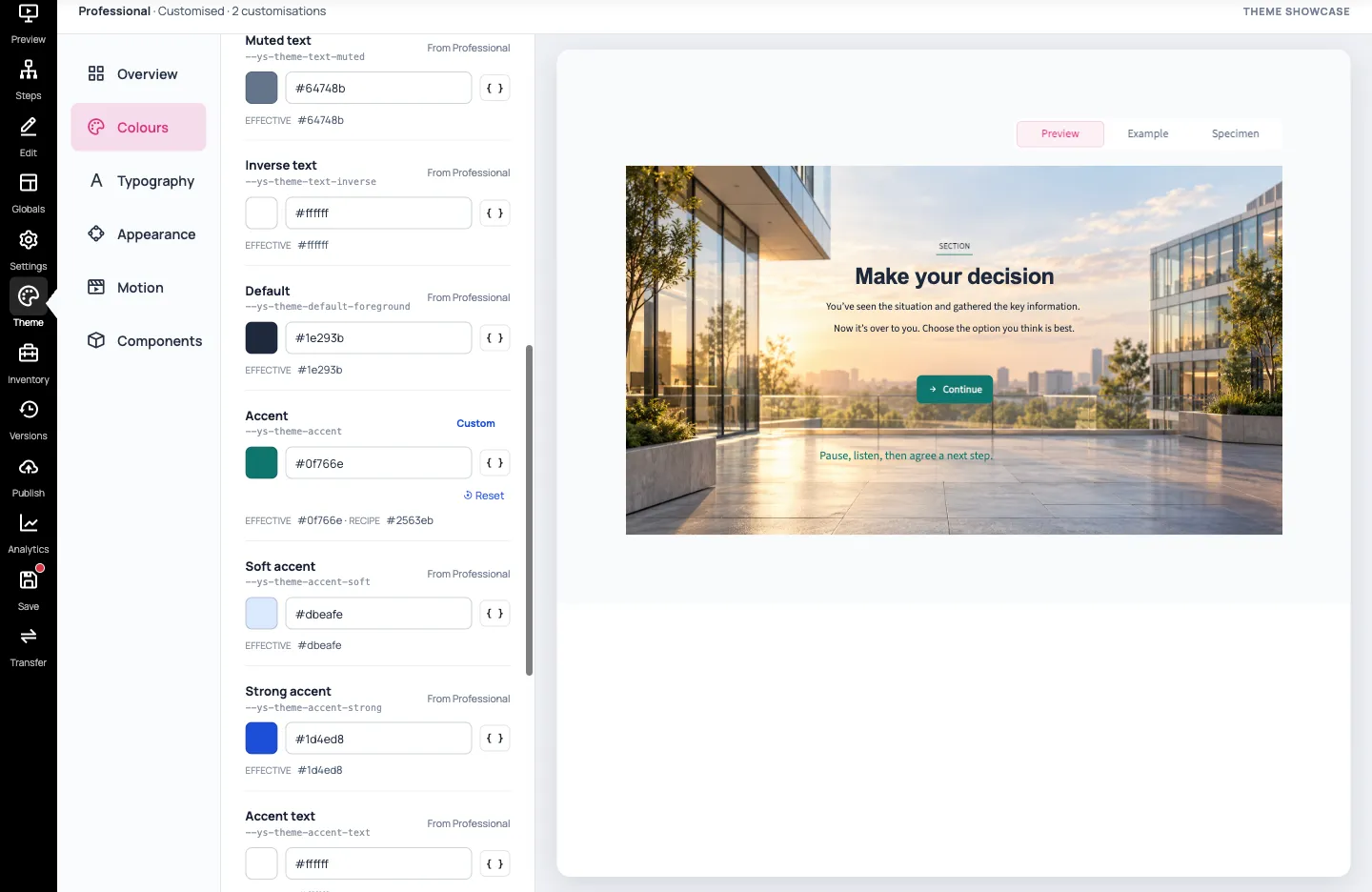
Check the button and accent-styled note in the preview. Keep text easy to read against its background; changing the accent doesn’t automatically make every colour combination suitable.
4. Adjust typography
Section titled “4. Adjust typography”Select Typography. Open the Heading font picker and choose Arial from the available fonts. Leave Body font unchanged for this example.
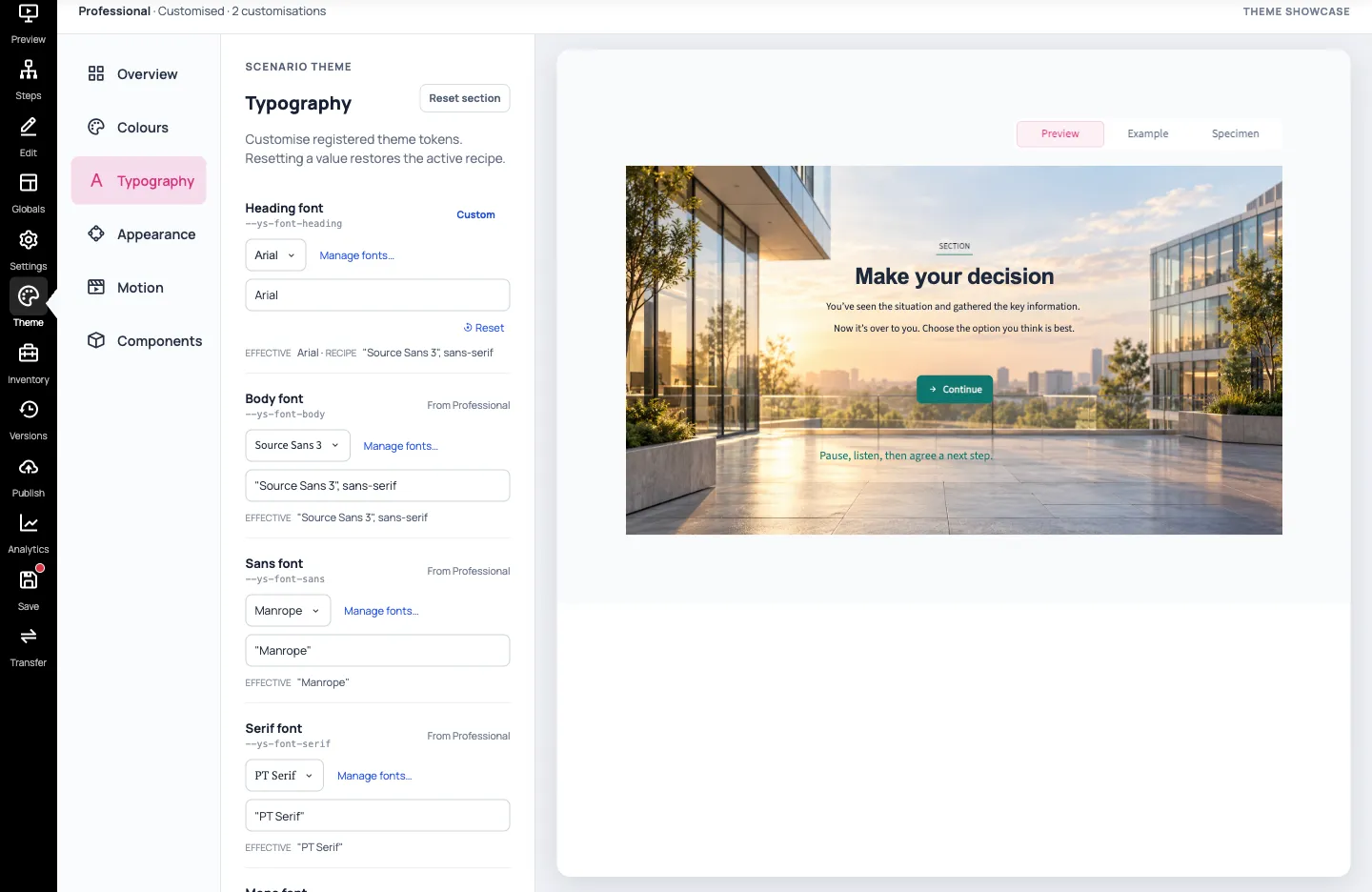
Inspect the heading and body together in the preview. Available fonts depend on the fonts provided or linked in your scenario. You don’t need the advanced font-family field for this task.
Select Save in the scenario navigation. Reload Theme and check that Professional, the teal Accent and Arial headings remain selected.
5. Save a reusable theme
Section titled “5. Save a reusable theme”Return to Overview and find My Themes. Choose Save theme; an empty library also offers Save as Theme.
Enter Leadership practice — teal in Save as Theme, then select Next. In Add a description, enter an optional reminder of your choices and select Save.
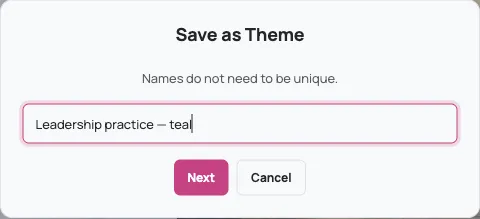
Check that your theme appears under My Themes. This saves theme settings, rather than a copy of the scenario’s steps or text. Saving the scenario and saving a reusable theme are separate actions.
If Theme could not be saved appears, read its explanation before continuing. Don’t assume a library entry was created. Keep your scenario saved and ask support if the problem persists.
6. Reapply and check
Section titled “6. Reapply and check”To reuse the saved settings, select your theme under My Themes. If asked, review the message that applying it will replace the current theme customisations, then choose Apply theme.
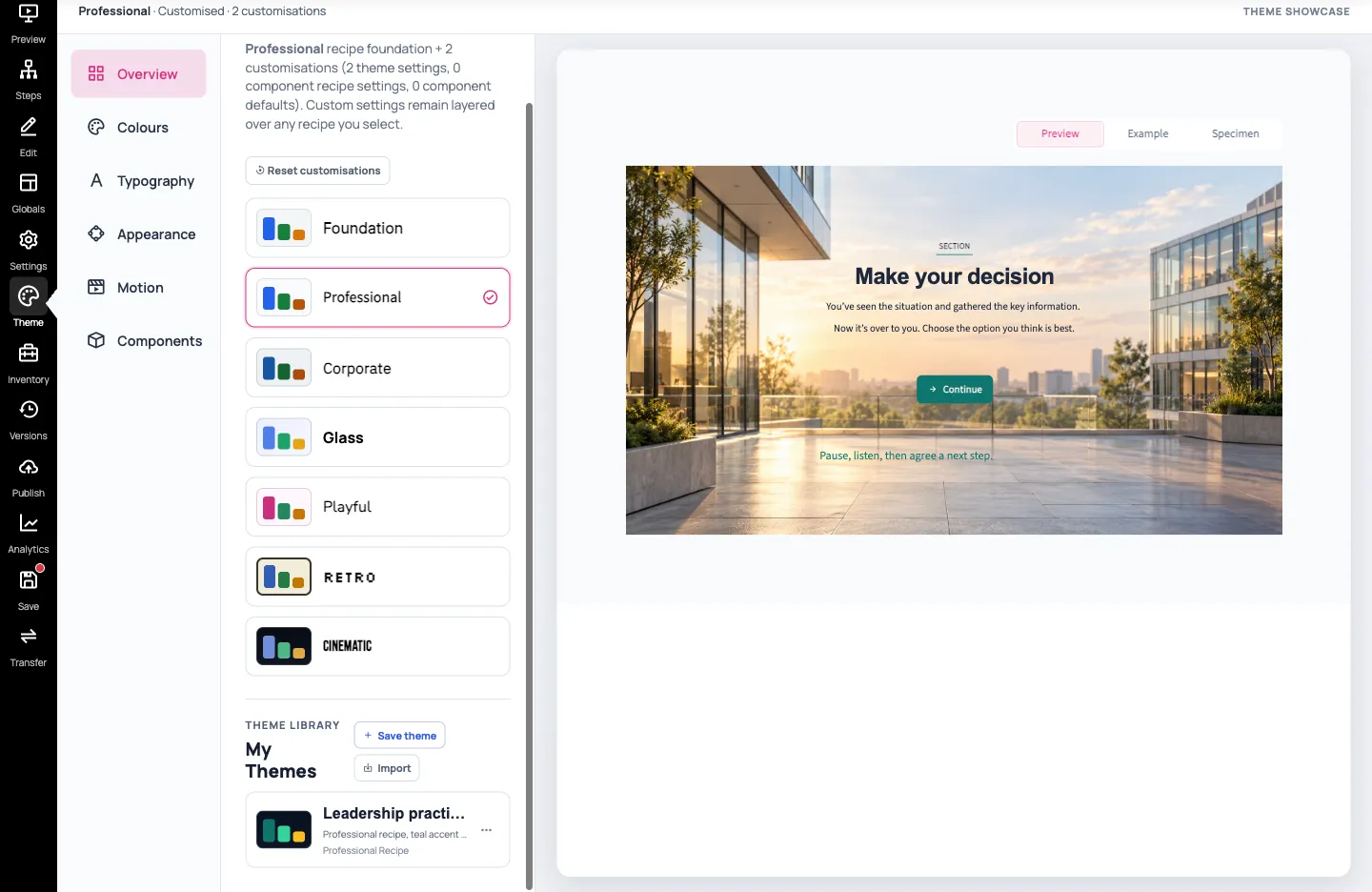
For a simple check on your practice copy, change Accent to another colour and save the scenario. Reapply Leadership practice — teal, then verify that the teal returns. Select Save, reload and check it again.
Later changes to the scenario do not update this saved theme automatically. Applying a theme doesn’t replace your step content, and local component overrides can still affect the result. Check both the theme preview and the actual step preview before continuing.
You now have a saved theme and a verified way to reapply it. Return to component appearance for individual adjustments or layouts and components to arrange more content.
Before sharing, test every path and check the theme at different screen sizes.