

Understand AI allowances and purchase Credits
Your account’s allowance panel and each generation quote show what you can use. Use these current figures rather than assuming every account with the same plan name has the same allowance.
1. Open your balance
Section titled “1. Open your balance”Select the AI Credits, AI Actions / Credits or AI Actions pill on the dashboard or editor navigation. Its label depends on your account. Open it again to refresh if the allowance is unavailable.
The breakdown can show included, introductory, welcome and purchased Credits, along with Available AI Credits and Reserved for pending requests. Your own panel shows the applicable dates and terms.
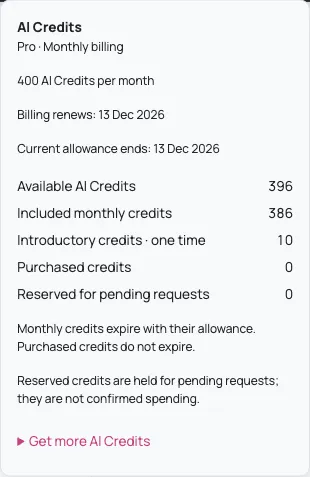
The numbers and dates in screenshots are examples, not an allowance or renewal promise for your account.
2. Understand Credits and legacy Actions
Section titled “2. Understand Credits and legacy Actions”AI Credits are the unit used by the current metered generation system. The cost depends on the operation and its options; speech can also depend on the text length.
Legacy AI Actions are a separate allowance for eligible older accounts’ text generation. Protected Actions are not a Credit balance. Where media generation is enabled, images and speech use Credits. A legacy Enterprise account does not automatically receive the same Credit allowance as a new Pro account.
Availability and included amounts depend on your account’s entitlements. If the panel cannot verify access, resolve its message or contact support before submitting generation.
3. Check the price before generating
Section titled “3. Check the price before generating”Read the unit, cost and allowance beside the generation control before selecting it. Wait for the price to finish loading. Changing an operation’s options or script may change its cost.
Generate images and audio with AI shows a live quote in the component audio form. Create your first scenario with AI covers the scenario-generation quote.
An amount reserved or held for pending requests is set aside for a request whose accounting has not finished. It is not confirmed spending. Do not assume an uncertain request failed because its result is not yet visible.
4. Find available Credit packs
Section titled “4. Find available Credit packs”- Open the allowance panel.
- Expand Get more AI Credits and wait for purchase availability to finish loading.
- If packs are available, review their current quantities, prices and the disclosure beside Continue to checkout. Select the pack you want.
- Select Continue to checkout to open Stripe. Check the order, total and any tax before completing payment.
- Return to Yo Scenario and check the original purchase, then reopen the allowance panel. Confirm Purchased credits and Available AI Credits have updated. Do not rely on the return page alone.
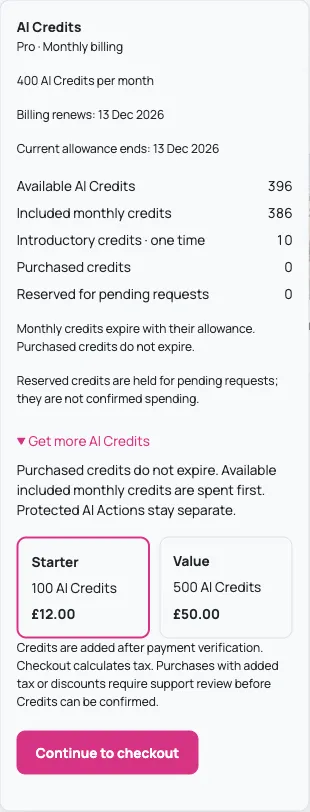
Credit purchasing requires an eligible account with linked billing. If the panel reports that purchasing is unavailable, follow View plans or contact support if you already have a plan. Do not assume the first loading state is the final availability result.
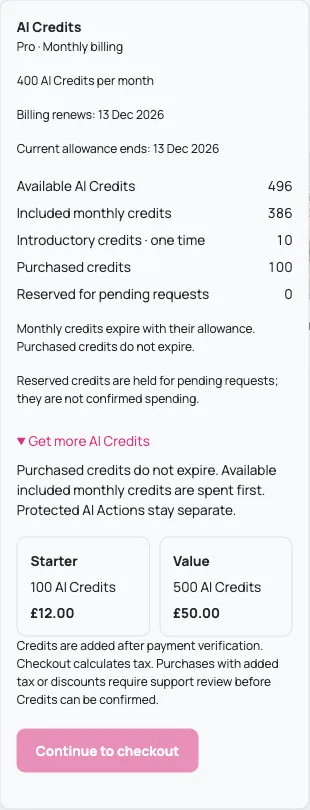
The confirmation example used Stripe Sandbox and synthetic payment details. Use the checkout provided by your own account for an actual purchase; the example is not a fixed pack size or price.
5. Check an uncertain result
Section titled “5. Check an uncertain result”For generation, reopen the original request and use its status or Check result control. Avoid submitting a duplicate.
For a retained purchase, use Check original purchase when offered. Resume original checkout and Retry same purchase refer to that retained purchase; they are different from buying another pack. Credits are confirmed after payment verification, so a return from checkout alone is not proof that the balance has been updated.
If a purchase remains uncertain, check the original purchase and contact support. Do not start another purchase to compensate for a missing confirmation. Leave payment details, passwords and private transaction data out of screenshots or public messages.