

Open and maintain a legacy scenario
You can continue working with a legacy-format scenario in its own editor. Opening it does not automatically convert it to the Design System.
This short guide uses a separate synthetic First day as a team leader — Legacy documentation practice scenario. Keep your existing original safe before trying major changes.
1. Open the existing scenario
Section titled “1. Open the existing scenario”In My Scenarios, find the scenario by its title and select its card or Open scenario. If it is archived, use Archived to find it first.

The title alone does not determine the format. Our example is named for documentation; do not expect every legacy scenario to have “Legacy” in its title or a format badge on its library card.
2. Recognise the editor
Section titled “2. Recognise the editor”A legacy-format scenario uses the older component controls and Styles navigation. A Design System scenario has Theme, theme-based appearance choices and its newer component library. The Design System layout guide illustrates that newer editor.
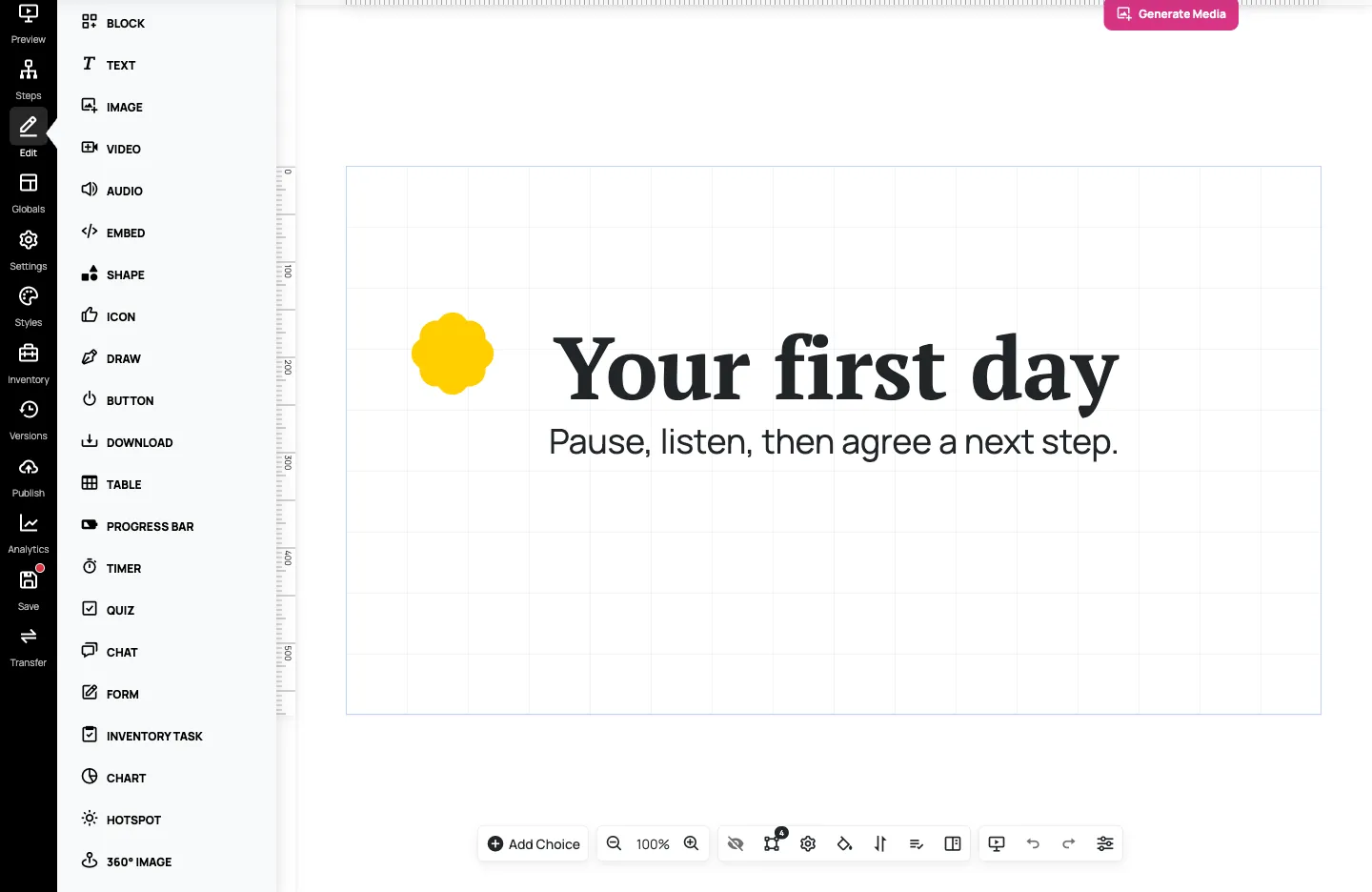
Use the controls offered by the scenario you opened. Design System recipes, component classes and Preset Manager instructions are not a universal replacement for legacy styling or template tools. The presence of a Generate Media button alone is not a format test or a promise that every media operation is available.
3. Edit, save and preview
Section titled “3. Edit, save and preview”- Open the step you want to maintain through the scenario’s Edit navigation or its step controls.
- Double-click the learner-facing text you want to change. Replace a short passage and check that it still fits.
- Select Save in the scenario navigation. Reload and confirm the change remains.
- Open Preview. Use Go to Step if you need to inspect a particular step, and check the actual learner route as well.
Our practice example uses Your first day and Pause, listen, then agree a next step. A short heading keeps the subtitle clear. Check overlapping text boxes after changing the wording.
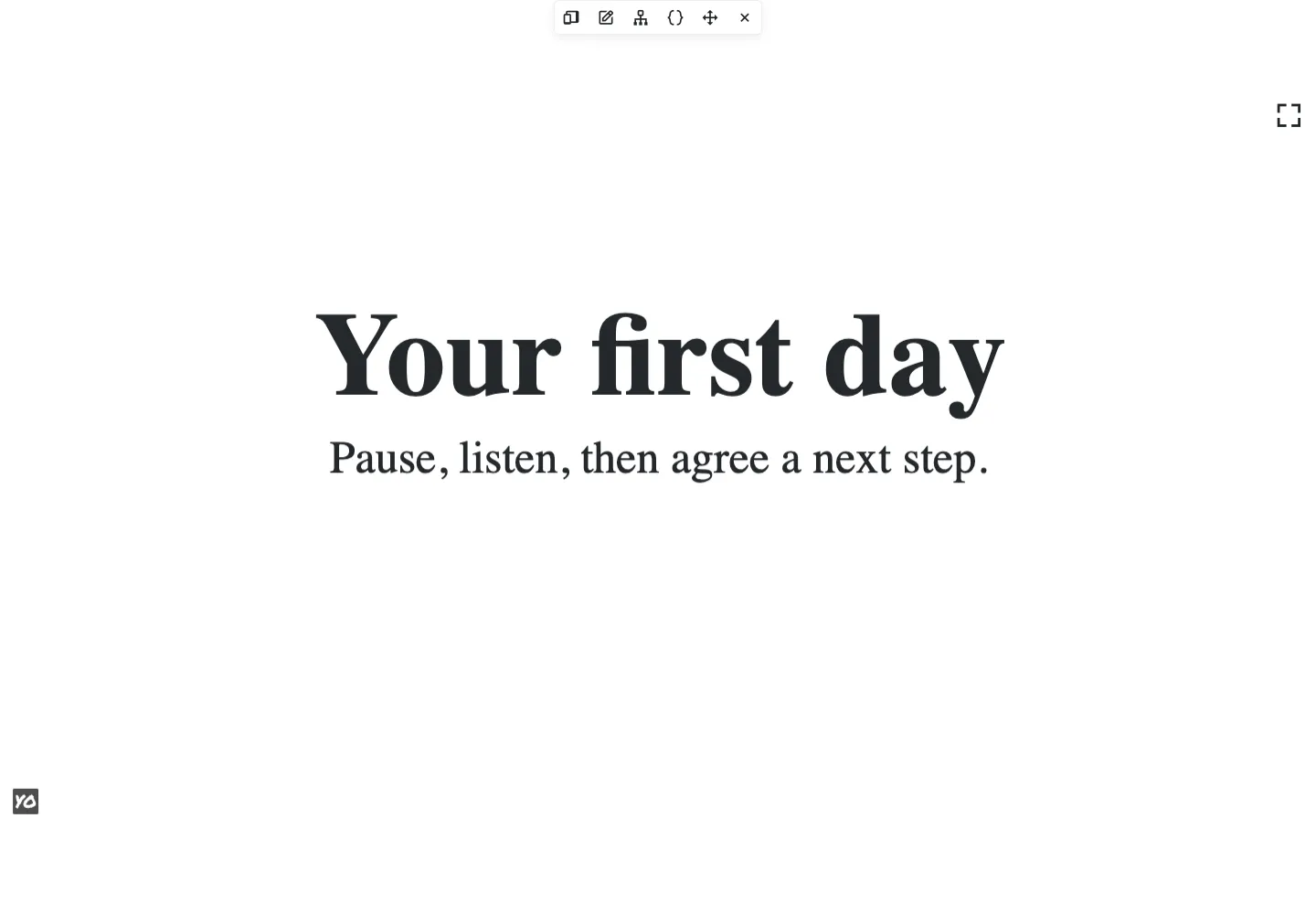
Test every path before sharing explains useful checks for decisions, interactions and screen sizes. The opening controls differ by format, so follow the preview entry points your own editor provides.
4. Keep legacy templates in context
Section titled “4. Keep legacy templates in context”In the legacy Create Step dialog, New Step from Template opens Step Template Library, with Browse Templates and My Templates. Selecting a template supplies step content for this legacy scenario; it does not convert the scenario into a Design System one.
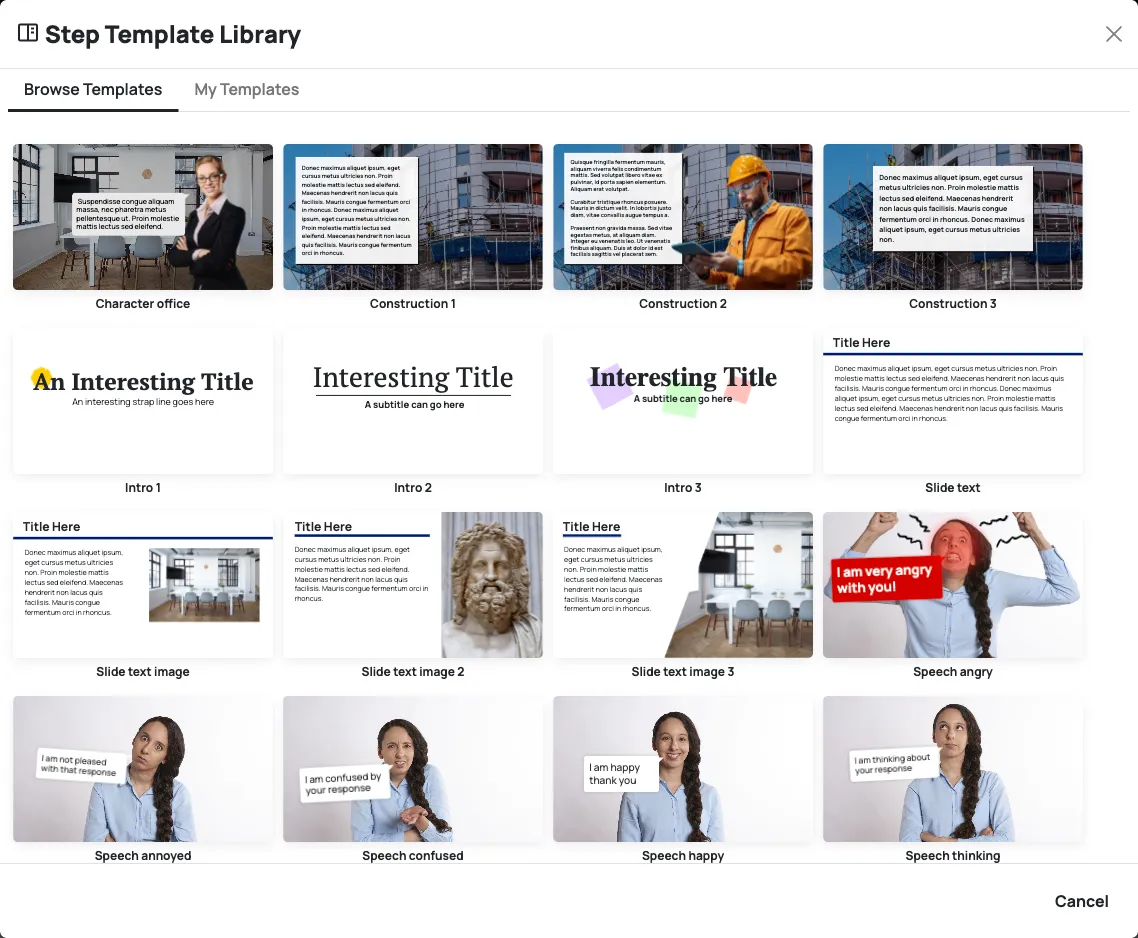
Treat placeholder text and media as starting content and check them before sharing. Step templates and whole-scenario templates are different things. Do not treat inserting a legacy step template as a conversion operation.
Before major changes
Section titled “Before major changes”Use the scenario’s dashboard actions to Duplicate it for practice, or preserve an appropriate saved version before changing its structure or styling. Confirm which copy you opened and keep the original unchanged.
If you want to rebuild older content with the Design System, contact support about the particular scenario before changing its format. Previewing a legacy scenario also remains separate from publishing or updating a learner-facing copy.