

Add steps and connect decisions
Give learners a meaningful choice and show what follows. You’ll add a separate Response practice step to First day as a team leader, then connect supportive and dismissive responses to its existing consequences.
Use a practice copy for this exercise. If you started with a blank scenario, add and write your consequence steps first; a connection needs a destination that exists.
1. Find your starting point
Section titled “1. Find your starting point”Select Steps to open the overview. The graph shows steps and the connections between them. Select the opening step to check the Scenario starts here label.
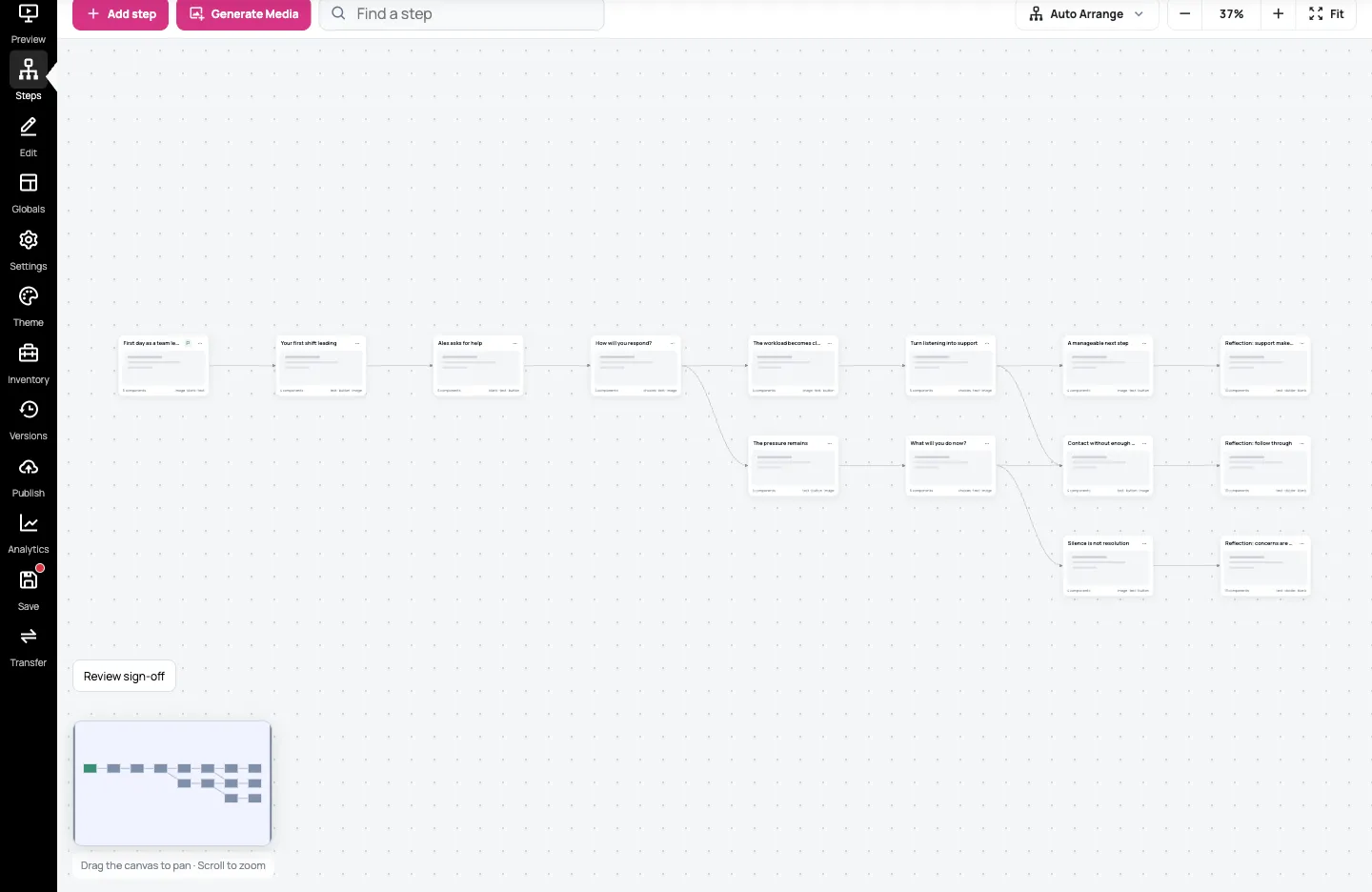
Moving a step tidies the graph; it doesn’t change where learners go. Connections come from learner-facing choices or navigation actions, such as a button press. Read their labels rather than assuming every line represents a choice.
2. Add a practice step
Section titled “2. Add a practice step”Select Add step, enter Response practice in Step title, then confirm Add step. The title identifies the step in the editor; it doesn’t automatically add a heading to the canvas.
Leave the story’s starting step unchanged. This new practice step can be previewed separately while you build it.
3. Create the supportive response
Section titled “3. Create the supportive response”On Response practice, select Add branch. In Choose a branch source, select + Add new Choice component, then Continue.
Enter Listen and offer practical help. as the Choice label, then select Choose destination.
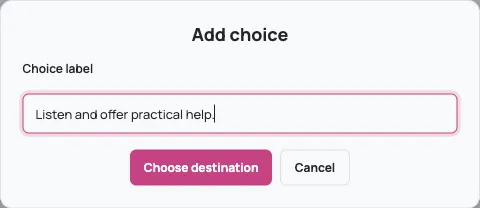
Choose The workload becomes clearer as the destination. You can click the destination step on the graph. If the details panel covers it, close the panel and use Fit to see the steps. The panel also offers a Keyboard destination list and Add branch control.
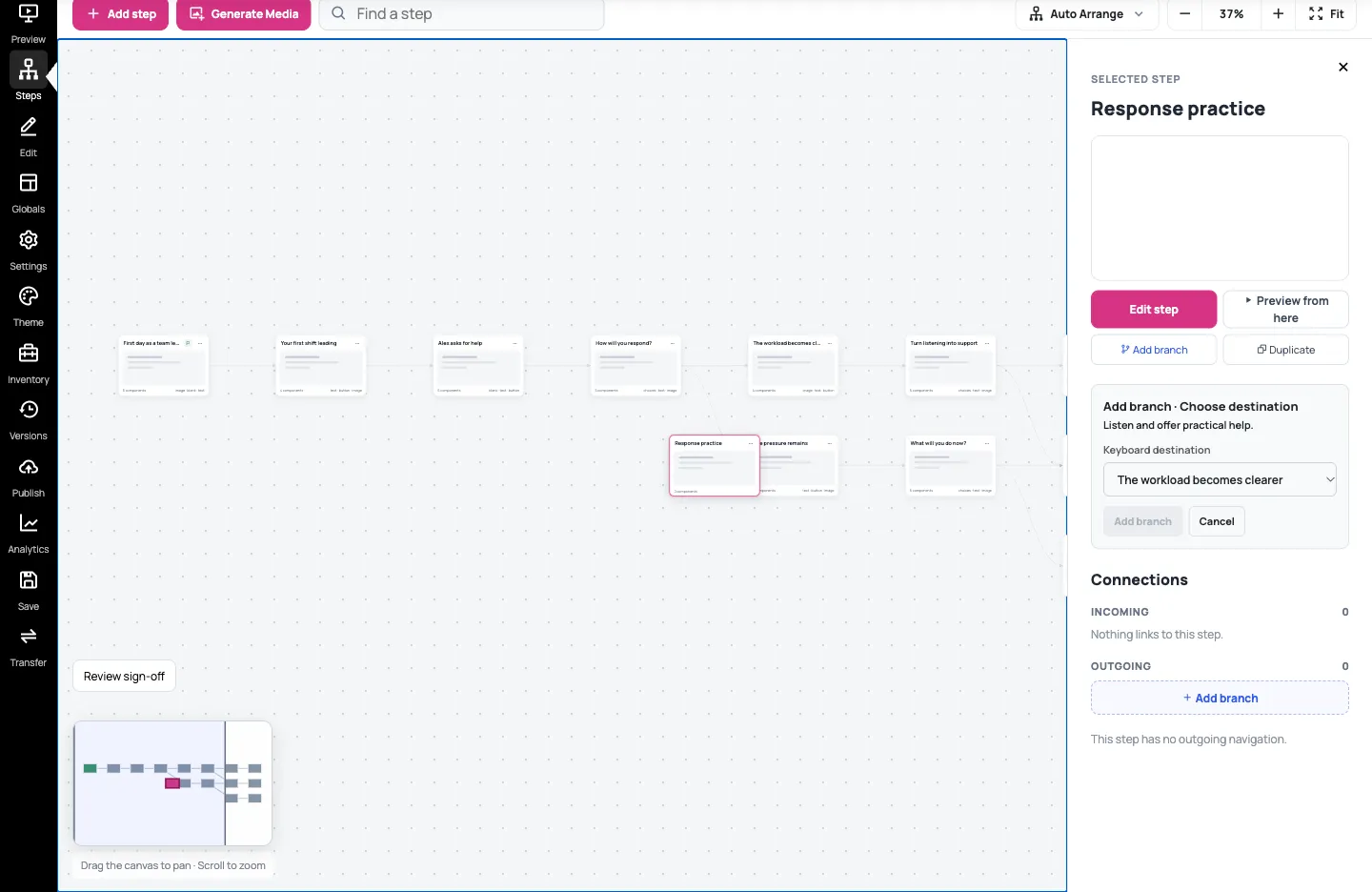
This creates a real choice in a Choices component and assigns its destination. It isn’t a line drawn separately from the learner’s control.
4. Add the other response
Section titled “4. Add the other response”On Response practice, select Add branch again. This time choose Add choice to existing Choice, then Continue.
Enter Tell Alex to carry on working., select Choose destination, and connect it to The pressure remains.
Open Edit this step and add a short Text prompt:
Alex feels overloaded. How will you respond?
Keep the prompt clear of the choices. Select the Choices component, expand Layout → Position and set Y to 350 on this 1024 × 576 canvas. Check that both stacked responses fit inside the canvas. Layouts and components explains positioning components. Select Save, reload and return to Steps.
5. Inspect or change a destination
Section titled “5. Inspect or change a destination”Select Response practice and inspect Connections → Outgoing. You should see two choices, each beside its intended consequence.
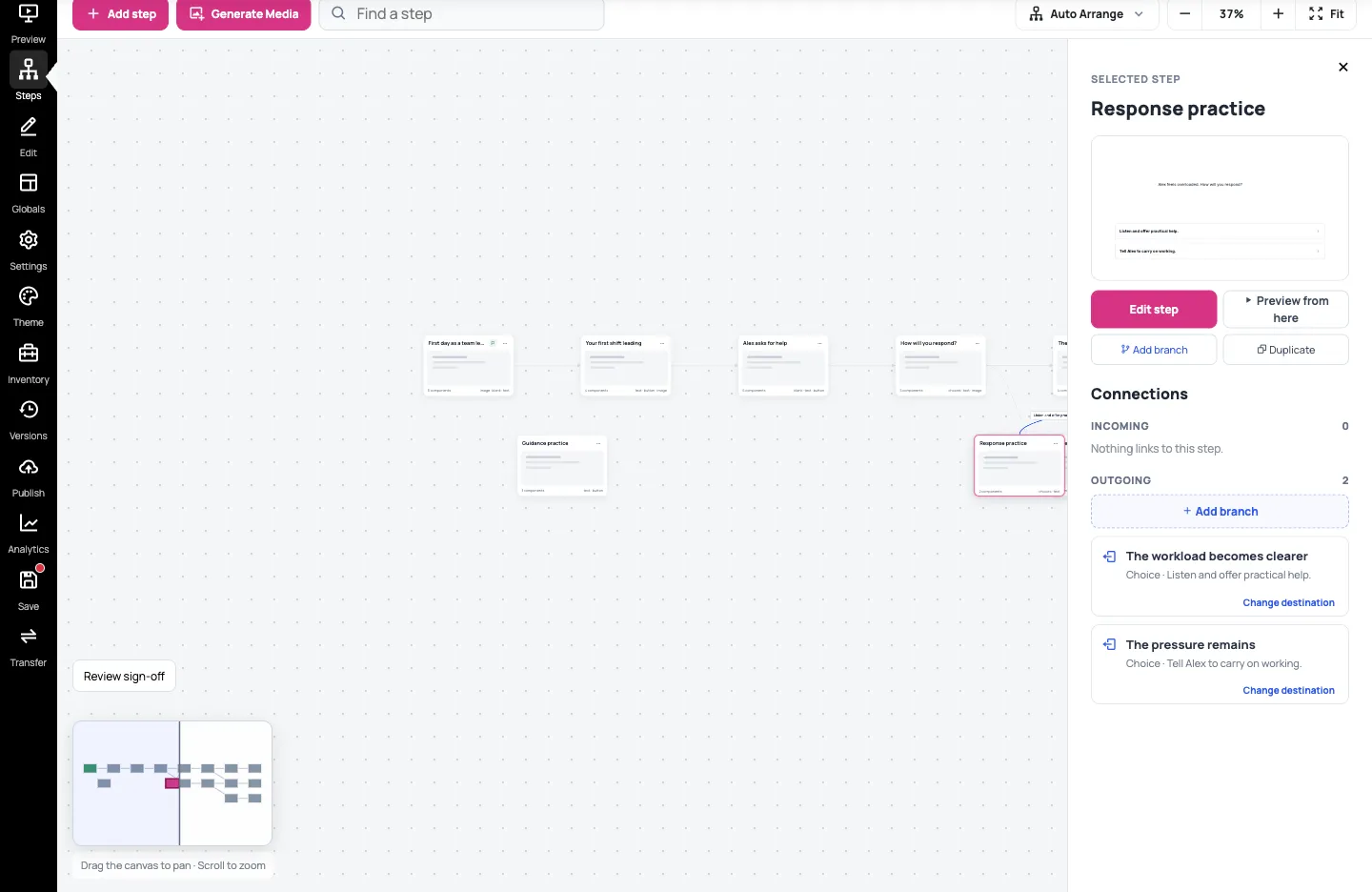
Use Change destination beside the relevant connection to inspect its source and Current destination. Select Cancel if you’re only checking it. To change it, choose the new destination step, then check the resulting connection again.
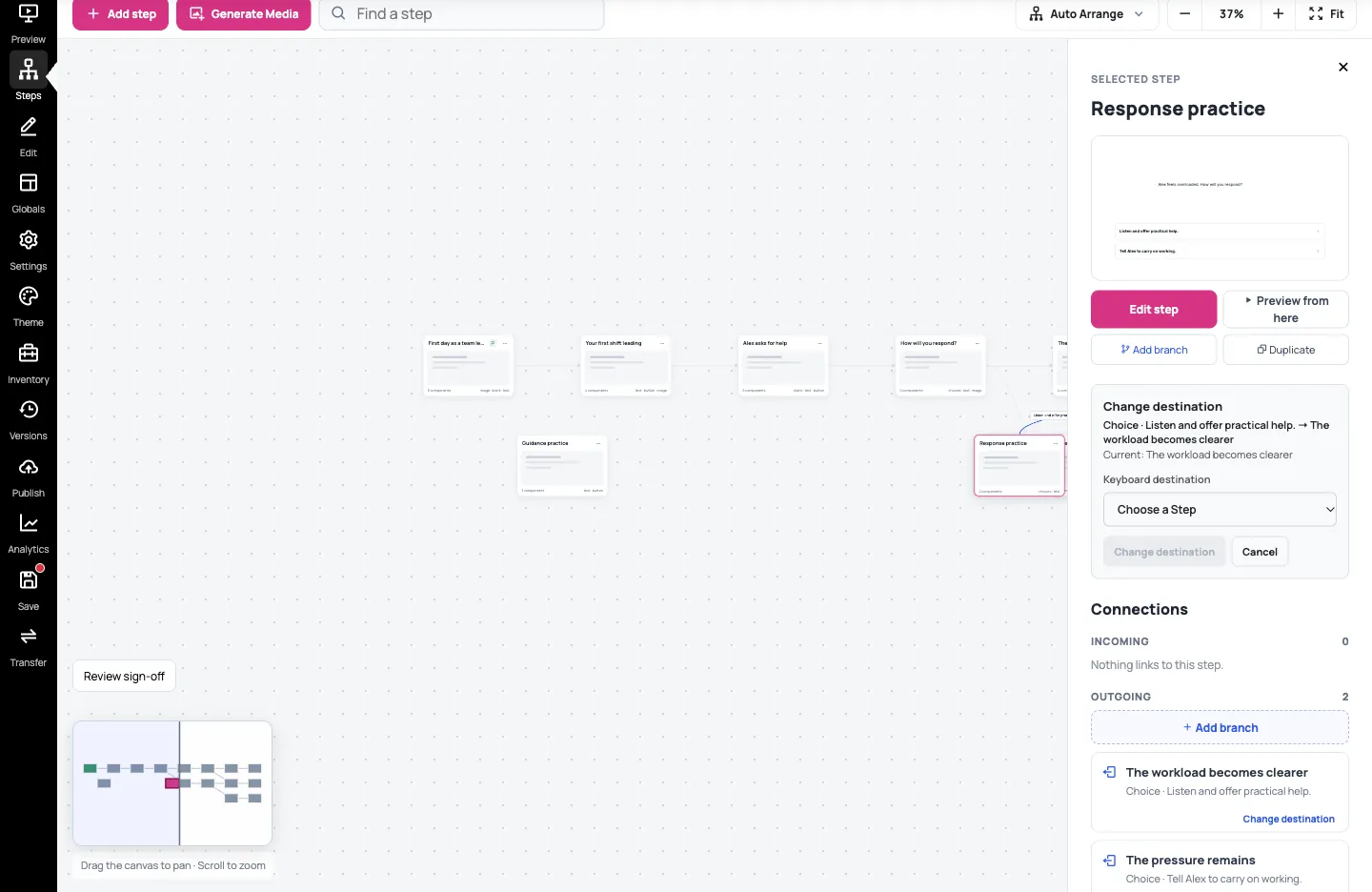
You can also open Add branch and choose that choice under Existing branches — Change destination. Check the choice label carefully so you don’t change a different button or response.
An empty step may show This step has no outgoing navigation. That’s expected for an ending, but incomplete for a decision. A Missing step destination or Broken connection needs attention before testing the route. Moving the destination node won’t repair it.
6. Try both branches
Section titled “6. Try both branches”Open Preview from here on Response practice. Confirm which step opens: if the preview starts at the story’s opening, use Go to Step → Response practice.
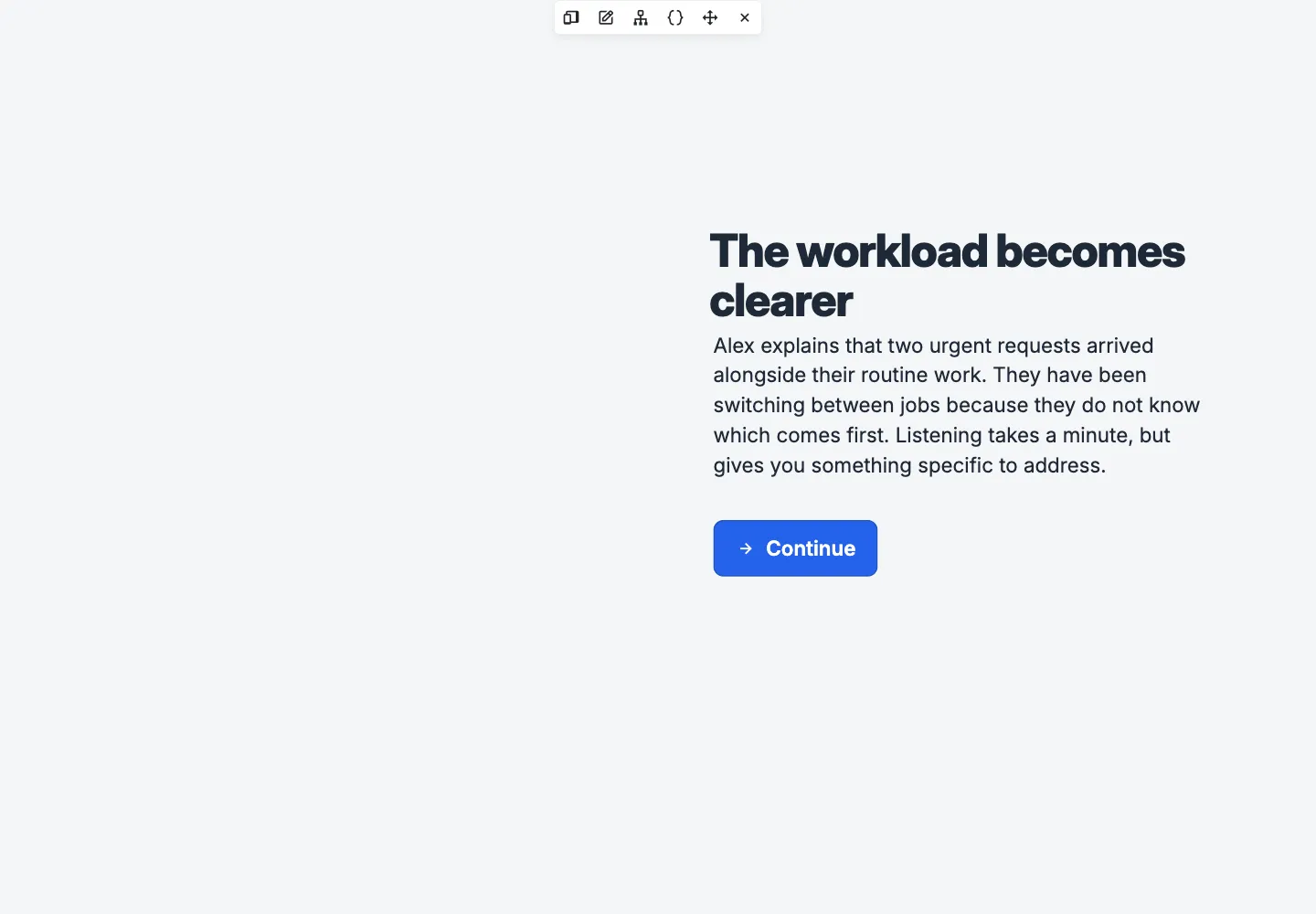
Choose the supportive response and check that it reaches The workload becomes clearer. Return to the practice step and try the dismissive response; it should reach The pressure remains.
Your practice decision is now connected. It remains separate from the story’s main starting route until you deliberately integrate it. Next, test every path before sharing or add a component interaction.